Skip to content
SiriCommands

Siri Commands: Complete List for Every Apple Device

Filter copy-ready voice prompts and Type to Siri requests across iPhone, Mac, Apple Watch, HomePod, AirPods, and CarPlay. Every command lists exact OS support and real setup caveats up front.

98 commands

Hand Off Complex Prompts & Photos to ChatGPT via Siri

“Siri, ask ChatGPT to plan a 3-day Tokyo itinerary”

Siri confirms whether to share the prompt or screenshot with ChatGPT (unless auto-confirm is set) and displays ChatGPT’s formatted answer inside the Siri overlay.

Note: Requires Apple Intelligence hardware and the ChatGPT extension enabled in Settings > Apple Intelligence & Siri > ChatGPT.

iPhone, iPad, MacVisual guide

Summon Type to Siri Silently

“Double-tap bottom bar (Type to Siri)”

The glowing Siri input bar slides up with keyboard focus and prompt suggestions, letting you type any command silently.

Note: Double-tapping the bottom bar requires Apple Intelligence turned on (iPhone 15 Pro / iPhone 16+ / M-series iPad).

iPhone, iPad, MacVisual guide

Identify Any Song Playing Around You with Shazam

“Hey Siri, what song is playing?”

Siri listens to the background audio for a few seconds, displays the track title and artist, and saves the match to your Shazam history.

Note: Requires an active internet connection for acoustic fingerprinting.

iPhone, iPad, Mac +4 moreVisual guide

Identify Objects, Flyers & Places with Visual Intelligence

“Siri, what restaurant is this?”

Visual Intelligence analyzes what your camera sees or what is on your screen and offers instant hours, reviews, calendar extraction, or web/ChatGPT lookups.

Note: Camera-based Visual Intelligence requires iPhone 16 series (Camera Control) or supported Action Button / Control Center models running Apple Intelligence.

iPhone

Listen to Unread Text Messages Hands-Free

“Hey Siri, read my unread messages”

Siri speaks the sender’s name and message text aloud and pauses to let you dictate an immediate reply.

Note: Requires unlocking iPhone if Allow Siri When Locked is off or if notification previews are hidden while locked.

iPhone, iPad, Mac +4 moreVisual guide
SettingsShortcuts

Play Water Eject Speaker Tone via Apple Shortcuts

“Hey Siri, Water Eject”

Siri triggers your installed Water Eject Shortcut, plays a pulsed low-frequency tone through the speakers, and clears residual moisture.

Note: Not built natively into iOS: you must first add a Water Eject shortcut in the Apple Shortcuts app (unlike Apple Watch, which has built-in Water Lock eject in Control Center).

iPhone, iPadVisual guide

Browse by Category

Jump straight to iOS 27 Apple Intelligence prompts, daily productivity, Smart Home controls, or Easter eggs.

Random prompt

“Siri, add this address to Mom’s contact”

Siri reads the visible address, date, link, or photo on screen and saves or shares it directly into Contacts, Calendar, Messages, or Reminders.

All Easter eggs →

Siri by Apple Device

Pick your hardware to see activation steps, compatible commands, and device limits.

See Siri in Action

Quick visual demos showing silent Type to Siri gestures and hardware speaker water ejection.

Double-tap the bottom gesture bar on iPhone to type requests silently without speaking aloud.
Type to Siri (iOS 26.4 & iOS 27)Setup steps
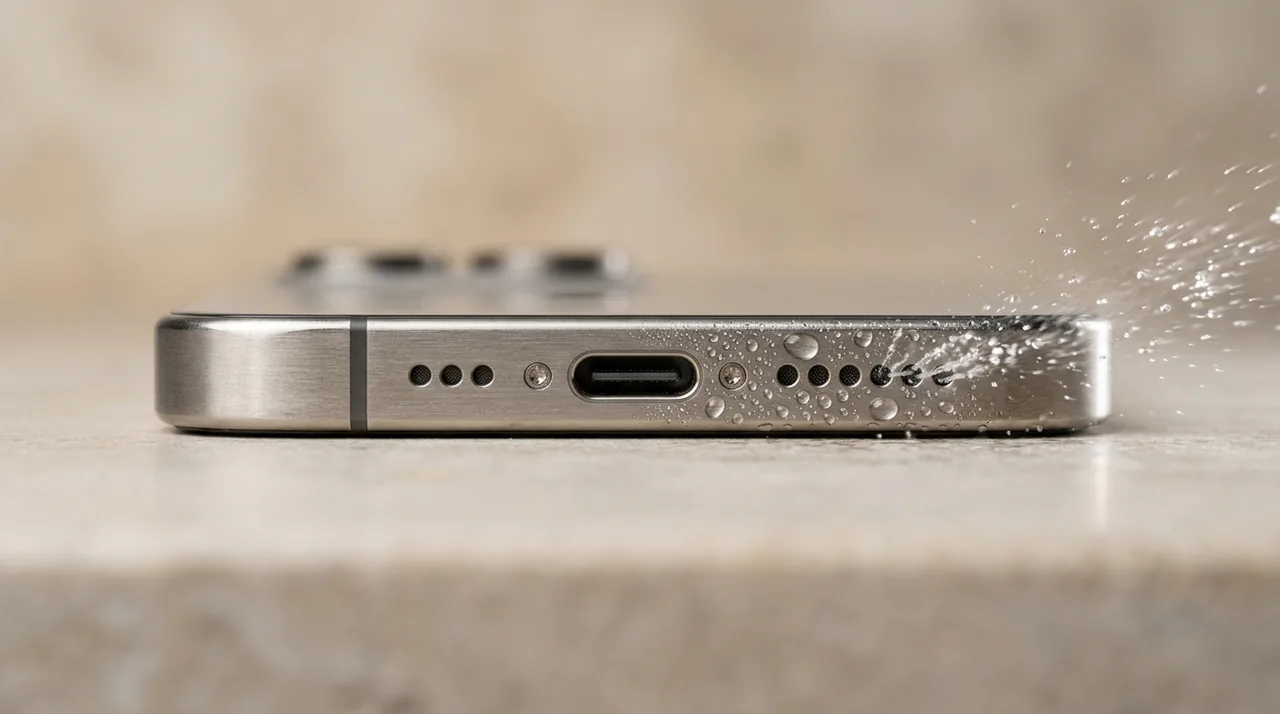
Run a 165 Hz low-frequency tone through your iPhone speaker grille to expel trapped water droplets.
Water Eject 165 Hz ShortcutSetup steps

Popular Siri Guides

Setup steps, Shortcuts workflows, and troubleshooting for the commands people search most.

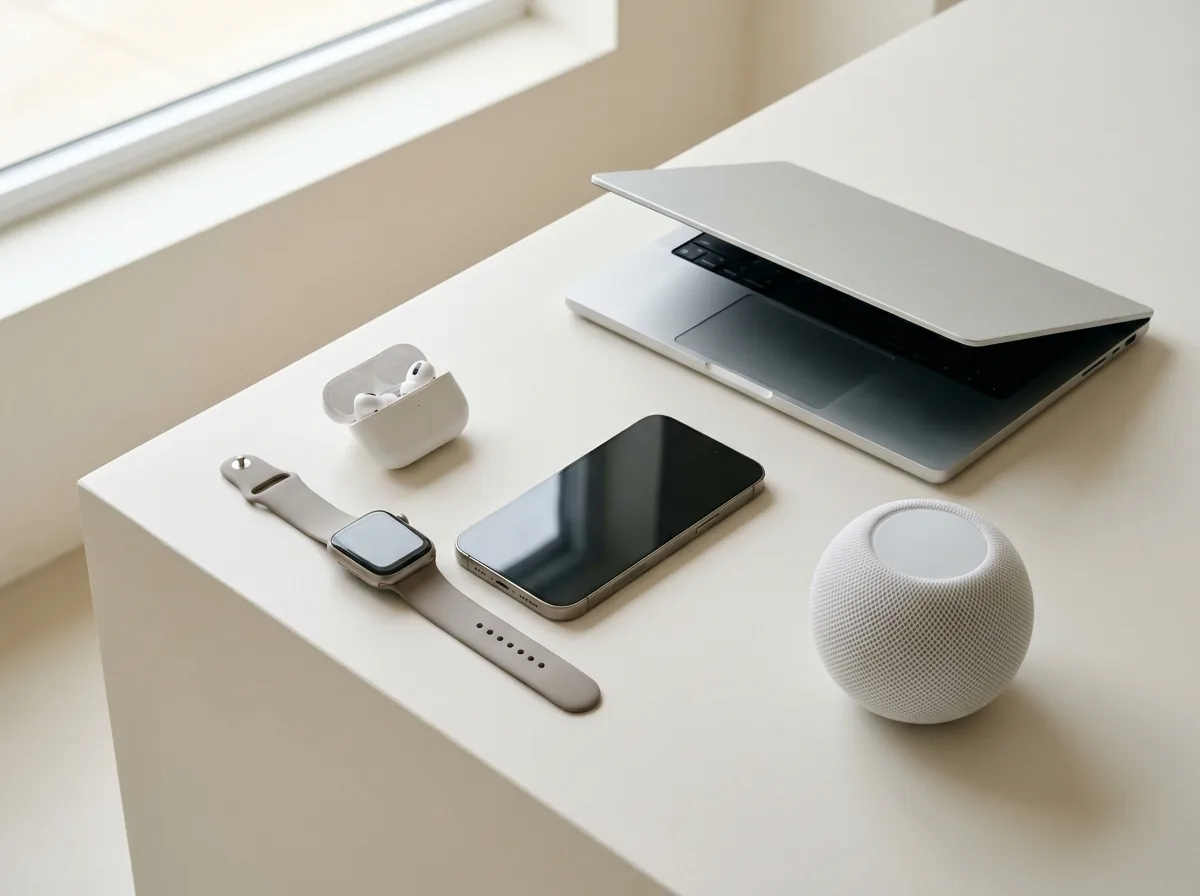
iPhone, MacBook Air, Apple Watch, and HomePod mini running Apple Intelligence

Apple IntelligenceiOS 27 & iOS 26.47 min

iOS 27 & Apple Intelligence Siri Commands: What Actually Works

Tested Siri AI prompts for iOS 26.4 and iOS 27 covering personal context across Mail and Messages, on-screen awareness, Type to Siri, Visual Intelligence, and ChatGPT handoffs.

Read guide
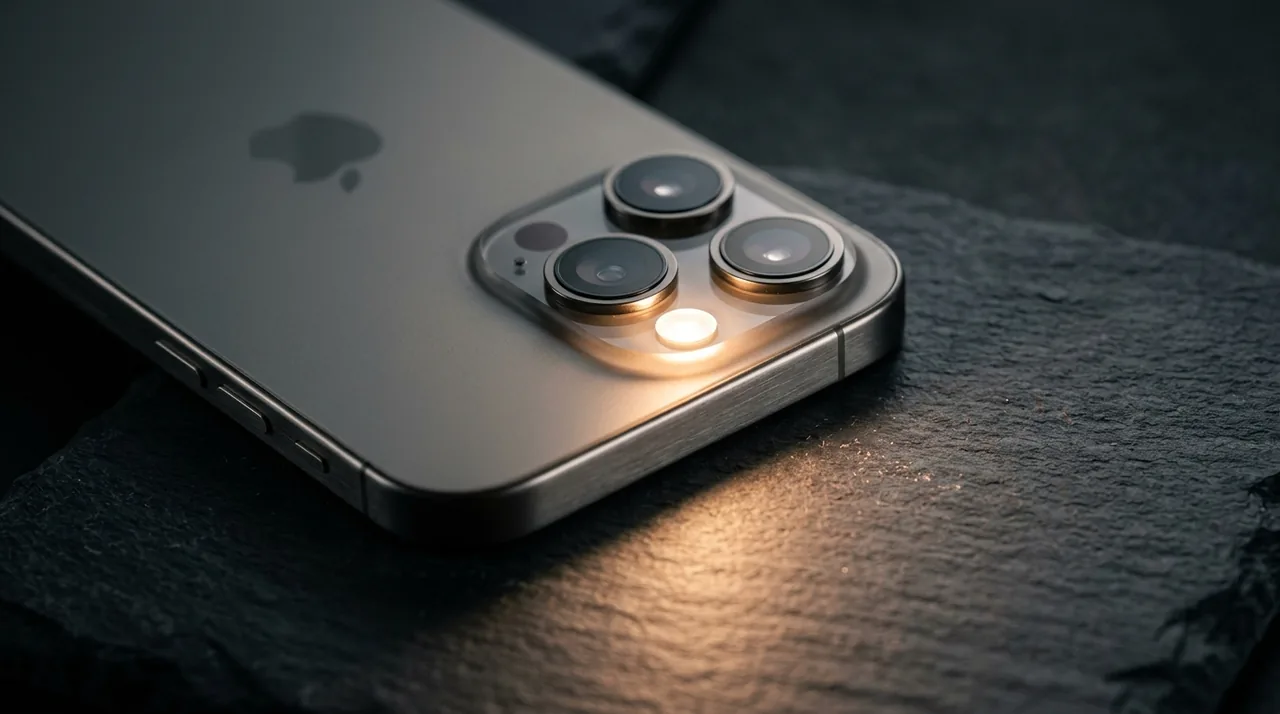
iPhone rear camera module with warm LED flashlight beam illuminated for Lumos command

Easter Eggs & ShortcutsiOS 27 & iOS 17+5 min

Harry Potter Siri Commands: Native Spells vs. Shortcut Setups

Which Harry Potter spells work on Siri out of the box (Lumos and Nox) and how to build working Shortcuts for Silencio, Lumos Maxima, and Accio in two minutes.

Read guide
Titanium iPhone on studio stone for Siri voice and microphone troubleshooting

TroubleshootingiOS 27 & iOS 17+7 min

Siri Not Working or Responding? Real Fixes for iPhone & CarPlay

Step-by-step fixes when Siri stops responding, ignores "Hey Siri," gets hijacked by Bluetooth mics, pauses in Low Power Mode, or throws "CarPlay Not Available: Enable Siri."

Read guide
Close-up of iPhone speaker grille running a custom Water Eject Siri Shortcut

Shortcuts & AutomationiOS 27 & Shortcuts App6 min

Custom Siri Commands & iPhone Shortcuts (Including Water Eject)

Turn any custom phrase into a working Siri command with Apple Shortcuts, run the 165 Hz Water Eject shortcut safely, and explore Vocal Shortcuts for single-word triggers.

Read guide
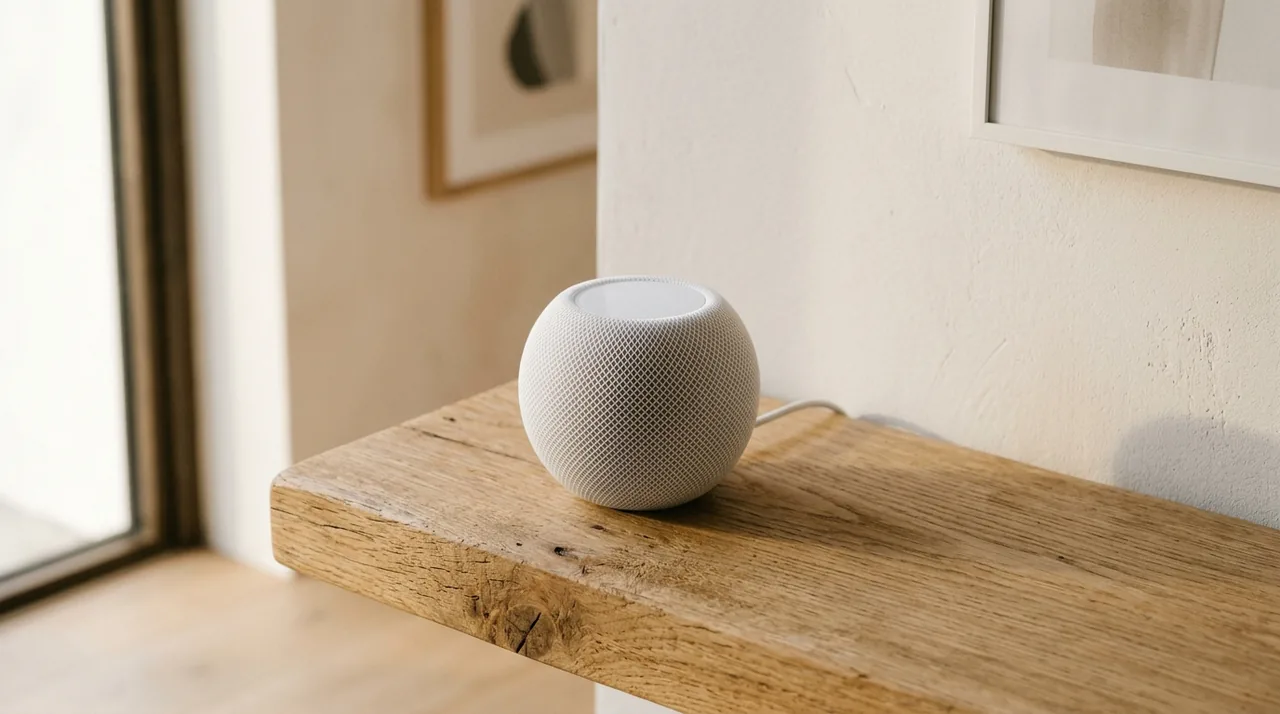
HomePod mini smart home speaker on oak shelf for HomeKit and Intercom commands

Car & Smart HomeiOS 27, CarPlay & HomePod7 min

Siri Commands for CarPlay, HomePod & HomeKit Smart Homes

Hands-free voice workflows built for driving and home rooms: CarPlay ETA sharing and message replies, HomePod Intercom broadcasts, multi-room music, and HomeKit door security rules.

Read guide
Titanium iPhone beside wireless headphones and aluminum desk speaker for Spotify playback

Cross-Device WorkflowsiOS 27, macOS & watchOS6 min

Siri Commands for Spotify, Mac & Apple Watch (Cross-Device Tips)

Use Siri cleanly with Spotify on iPhone and CarPlay, speed up Mac file lookups and system toggles, and trigger on-device Apple Watch workouts and Health logs.

Read guide

Common Questions

Practical answers verified across iOS 26.4, iOS 27, macOS, watchOS, and HomePod.

Do I have to say "Hey Siri" or just "Siri"?

Modern Apple silicon devices running iOS 17 or newer, including recent iPhones, iPads, Macs, Apple Watch Series 9 or Ultra 2 and later, and HomePod, let you drop "Hey" and simply say "Siri." Older hardware and certain regional languages still require "Hey Siri." Check Settings > Apple Intelligence & Siri > Talk & Type to Siri to switch modes.

Which devices support iOS 26.4 and iOS 27 Siri commands?

Apple Intelligence features like on-screen awareness and personal context across Mail, Messages, and Photos require an iPhone 15 Pro, iPhone 15 Pro Max, iPhone 16 family, or newer, or an M-series iPad or Mac with Apple Intelligence enabled in a supported language and region.

Why do some Harry Potter spells work immediately while others do nothing?

Apple built native flashlight responses only for "Lumos" and "Nox." Other popular spells like "Silencio" for Focus mode or "Accio" for opening an app are not built into Siri by default. You can add them in under two minutes by naming a workflow in the Shortcuts app.

Can Siri control Spotify instead of Apple Music?

Yes on iPhone, iPad, Mac, Apple Watch, and CarPlay when you append "on Spotify" to your request, or after selecting Spotify as your default player when Siri asks. HomePod still does not run native Siri voice queries against Spotify and requires AirPlay from an iPhone, iPad, or Mac.

How do I activate Type to Siri without speaking out loud?

On an iPhone with Apple Intelligence enabled, double tap the bottom Home bar from any screen to start typing to Siri. On earlier iPhones or when Apple Intelligence is off, turn on Type to Siri under Settings > Accessibility > Siri so holding the Side button opens a keyboard instead of the microphone.

Why does Siri stop listening when my iPhone is face down or in Low Power Mode?

iPhone suppresses hands-free voice triggers whenever the proximity sensor detects the screen sitting face down or inside a bag, and Low Power Mode pauses always-on voice listening on supported models to save battery. Pressing and holding the Side button still wakes Siri immediately.

Setup Pages for 13 Key Commands

Direct links to individual setup steps, app permissions, and troubleshooting notes.