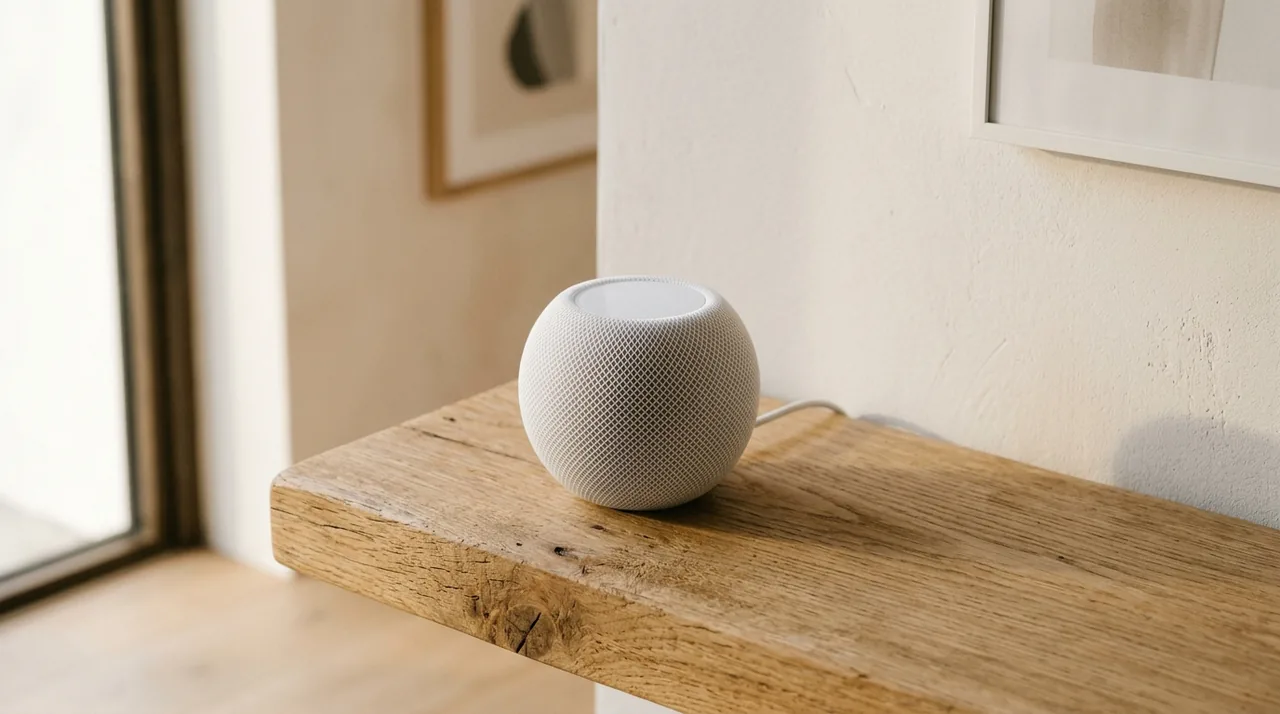
Any Matter or Apple HomeKit accessory configured in the Apple Home app responds to Siri across HomePod, iPhone, Apple Watch, CarPlay, and Apple TV. Run multi-device scenes like Good Morning and Good Night, dim individual rooms, check whether you left the garage door open, or broadcast Intercom messages to every room.
/
9 commands
Broadcast Voice Intercom Messages to HomePods & Family Devices
“Hey Siri, Intercom "Dinner is ready"”
Your spoken message plays across targeted HomePods and Apple devices, and family members can reply right back via Intercom.
Note: Intercom must be enabled inside the Apple Home app under Home Settings > Intercom.
HomePod, iPhone, iPad +3 more
Trigger Multi-Device HomeKit Wake & Sleep Scenes
“Hey Siri, good night”
Every HomeKit or Matter device assigned to that scene updates simultaneously and Siri confirms completion.
Note: Scenes must first be created or customized inside the Apple Home app.
HomePod, iPhone, iPad +5 more
Play Built-In HomePod Ambient Sleep Sounds
“Hey Siri, play rain sounds”
HomePod begins looping the requested soundscape smoothly without needing an Apple Music playlist.
Note: Built-in ambient soundscapes are native to HomePod and HomePod mini (available seven tracks: Rain, Forest, Ocean, Stream, Night, Fireplace, White Noise).
HomePod
Control Room Lights, Dimming & Color
“Hey Siri, dim the living room lights to 30 percent”
Siri adjusts only the smart lights assigned to that room in Apple Home.
Note: When speaking to a HomePod inside a room, saying "turn off the lights" automatically targets only that room’s lights.
HomePod, iPhone, iPad +4 more
Turn Off Every Smart Light in Your Home
“Hey Siri, turn off all the lights”
Every HomeKit and Matter light in the home (or specified floor/zone) switches off.
Note: Smart plugs set to "Display as Fan" or "Outlet" stay on unless configured to display as a Light in Home settings.
HomePod, iPhone, iPad +3 more
Adjust HomeKit Smart Thermostat Temperature
“Hey Siri, set the thermostat to 70 degrees”
Your HomeKit or Matter thermostat updates its setpoint and confirms the new target temperature.
Note: HomePod 2nd gen and HomePod mini also include built-in temperature and humidity sensors you can query by room.
HomePod, iPhone, iPad +3 more
Check Garage Door & Contact Sensor Status
“Hey Siri, did I close the garage door?”
Siri checks the live sensor state and tells you whether the garage door or lock is open or closed.
Note: Closing the garage works anywhere; opening it remotely via Siri requires unlocking your iPhone for security.
HomePod, iPhone, iPad +2 more
Lock or Check Status of HomeKit Smart Locks
“Hey Siri, lock the front door”
Siri locks the deadbolt immediately and confirms it is secured.
Note: For security, unlocking a door requires unlocking your iPhone or confirming on Apple Watch—HomePod cannot unlock doors by voice.
HomePod, iPhone, iPad +2 more
Pull Up Live HomeKit Camera Feeds on Apple TV or iPhone
“Show me the front door camera”
Your front door or backyard camera stream opens instantly over whatever you are watching.
Note: Requires a HomeKit-compatible camera added to the Apple Home app.
Apple TV, iPhone, iPad +1 more
HomePod Intercom Routing: Whole Home vs. Single Room
“Hey Siri, Intercom Dinner is ready”
Broadcasts simultaneously to every HomePod in the home plus opted-in family iPhones, Apple Watches, and AirPods.
“Hey Siri, Announce upstairs Time to leave”
Targets only the HomePod assigned to that room or zone in Apple Home. Recipients can reply back with “Reply [message].”
Pro Tips
Tips for Smart Home & HomeKit
Give rooms and scenes short, distinct names in the Home app so Siri never confuses "Living Room Lamp" with "Living Room TV."
You can lock HomeKit smart locks from any device including HomePod, while unlocking requires authentication on a personal device like iPhone or Apple Watch.
Use "Intercom" from CarPlay on your drive home to send a voice announcement straight to your home HomePods.
FAQ
Smart Home Siri Questions
Why won’t HomePod unlock my front door when I ask Siri?
For physical home security, Apple blocks HomePod from unlocking doors or opening garage doors without personal device authentication. You can lock doors from HomePod, and unlock them using iPhone or Apple Watch after unlocking your device.
What happens when I say "Hey Siri, good night"?
Siri triggers the Good Night scene configured in your Apple Home app, which can turn off lights, lock doors, lower shades, and adjust your thermostat simultaneously.