Trigger Multi-Step Custom Apple Shortcuts by Name
Shortcuts“Hey Siri, Morning Routine”
Siri matches the spoken phrase to your saved Shortcut and executes every chained action automatically.
Runs an Apple Shortcuts audio routine that plays a low-frequency tone to vibrate water droplets out of iPhone speaker grilles.
“Hey Siri, Water Eject”
Alternate Variations That Also Work
Expected Result
Siri triggers your installed Water Eject Shortcut, plays a pulsed low-frequency tone through the speakers, and clears residual moisture.
Important Requirements & Caveats
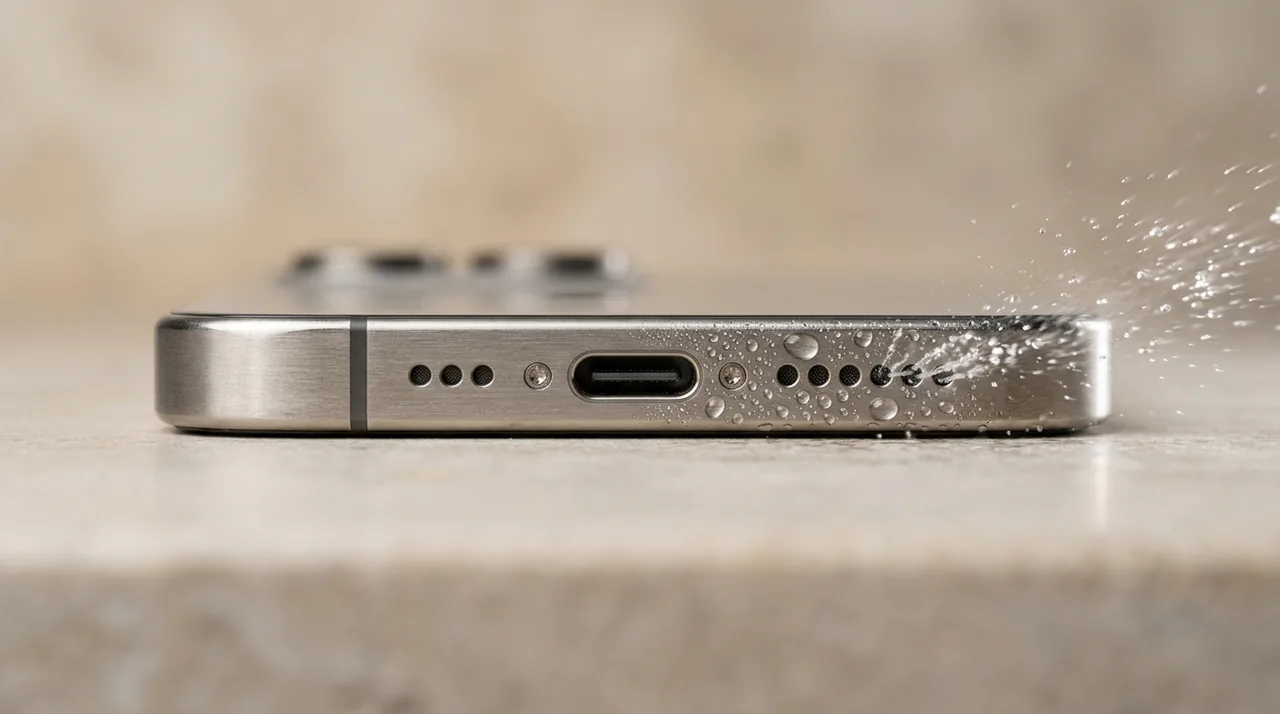
After rain, pool splashes, or an accidental sink drop, iPhone speakers sound muffled until water clears from the mesh. Because iOS lacks the native Water Lock eject button found on Apple Watch, a simple Water Eject Shortcut lets Siri trigger the tone hands-free.
A Water Eject shortcut generates or plays a brief, calibrated low-frequency audio waveform (~165 Hz) at high volume, creating air pulses inside the speaker chamber that push droplets outward.
No. Apple Watch includes a native Water Lock button in Control Center that ejects water when unlocked, while iPhone requires a third-party Shortcut or speaker-cleaner app.
Playing a short 10-second low-frequency tone at normal max media volume is generally safe, as it uses standard speaker playback. Avoid placing your ear directly against the grille at 100% volume.
Apple Watch handles water ejection natively from Control Center (tap the water droplet icon, then press and hold the Digital Crown to eject).
Similar & companion commands
4 commands“Hey Siri, Morning Routine”
Siri matches the spoken phrase to your saved Shortcut and executes every chained action automatically.
“Hey Siri, set the volume to 40 percent”
Siri adjusts the media volume slider on the current device or HomePod to 40%.
“Hey Siri, restart my iPhone”
Siri displays a confirmation prompt ("Just to confirm, do you want to restart this iPhone?"). Saying "Yes" or tapping Restart reboots the device.
“Hey Siri, take a screenshot”
The Siri overlay dismisses briefly, flashes the screen capture, and saves the screenshot without pressing any hardware buttons.
Shortcuts & AutomationiOS 27 & Shortcuts App6 min
Turn any custom phrase into a working Siri command with Apple Shortcuts, run the 165 Hz Water Eject shortcut safely, and explore Vocal Shortcuts for single-word triggers.
Hidden UtilitiesiOS 27 & iOS 17+6 min
Skip generic lists and try practical hidden Siri commands: parked car lookup, hands-free screenshots, Find My audio pings, name pronunciation fixes, and Safari read-aloud.