Siri Commands for CarPlay, HomePod & HomeKit Smart Homes
Hands-free voice workflows built for driving and home rooms: CarPlay ETA sharing and message replies, HomePod Intercom broadcasts, multi-room music, and HomeKit door security rules.
Key Takeaways
- Steering wheel voice buttons wake CarPlay Siri faster and more reliably than shouting over road noise.
- HomePod Personal Requests require Voice Recognition switched on per household member inside the Home app.
- HomePod Intercom broadcasts voice notes from your car or iPhone straight to kitchen or upstairs speakers.
- HomeKit blocks front door locks and garage doors from opening via HomePod voice commands without personal device authentication.
CarPlay commands built for highway speed
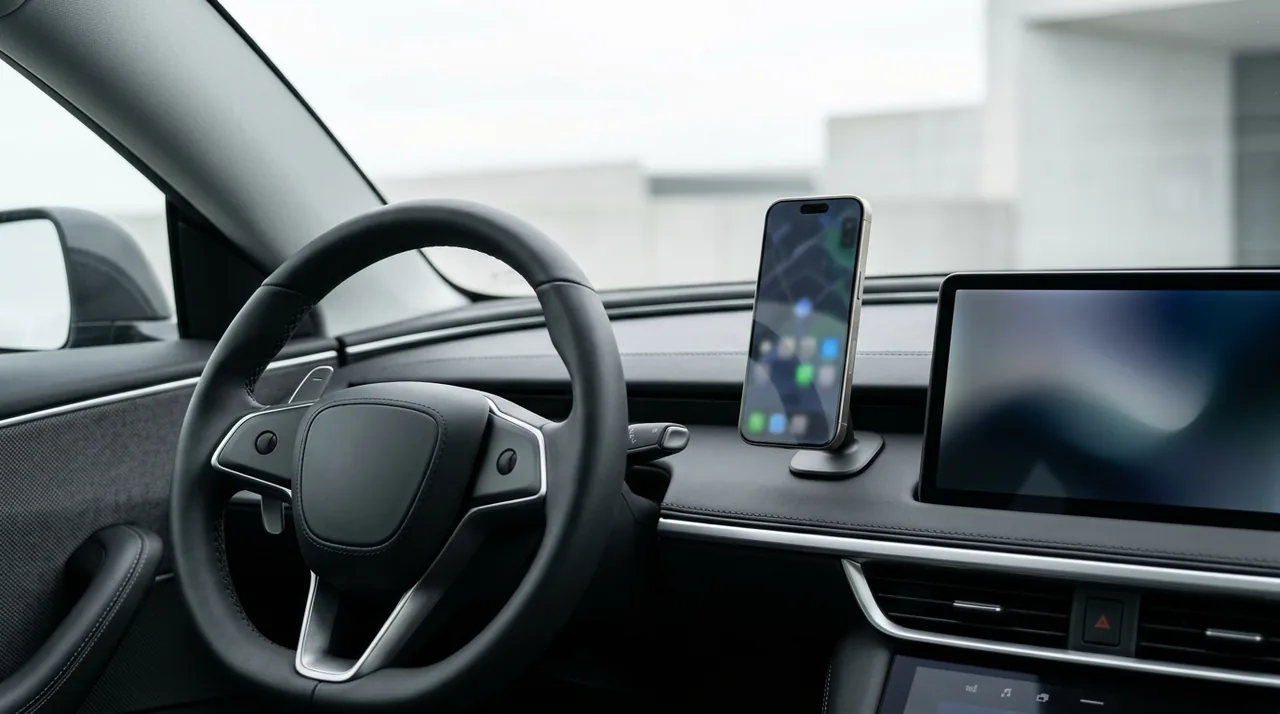
Pressing the steering wheel voice button mutes cabin music cleanly so Siri catches your words over tire and wind noise. When incoming texts play via Announce Messages, pause a second and speak "Reply I’m five minutes away" without glancing at the center screen.
Our full set of hands-free CarPlay navigation and messaging commands shines on active routes: add an EV charger along your way, share your live ETA with a contact, or rely on hands-free speakerphone calls and voice messaging commands before plugging in.
Commands from this section
5 commands“Hey Siri, read my unread messages”
Siri speaks the sender’s name and message text aloud and pauses to let you dictate an immediate reply.
Reply Directly to the Last Read Message
“Hey Siri, reply I’ll be there in five minutes”
Siri confirms your reply text and delivers it to the same sender or group thread.
Share Your Live Arrival Time While Navigating
“Hey Siri, share my ETA with Alex”
Apple Maps sends your real-time ETA notification to Alex and updates them automatically if traffic delays you.
Add Gas, EV Chargers, or Coffee Along Your Active Route
“Hey Siri, find the nearest EV charger along my route”
CarPlay or Maps displays matching stops sorted by minimal detour time so you can tap or speak to add a pit stop.
Find Your Parked Car Automatically in Apple Maps
“Hey Siri, where did I park my car?”
Siri displays the exact Parked Car pin on Apple Maps and offers walking directions right back to your parking spot.
HomePod Intercom broadcasts and Personal Requests setup
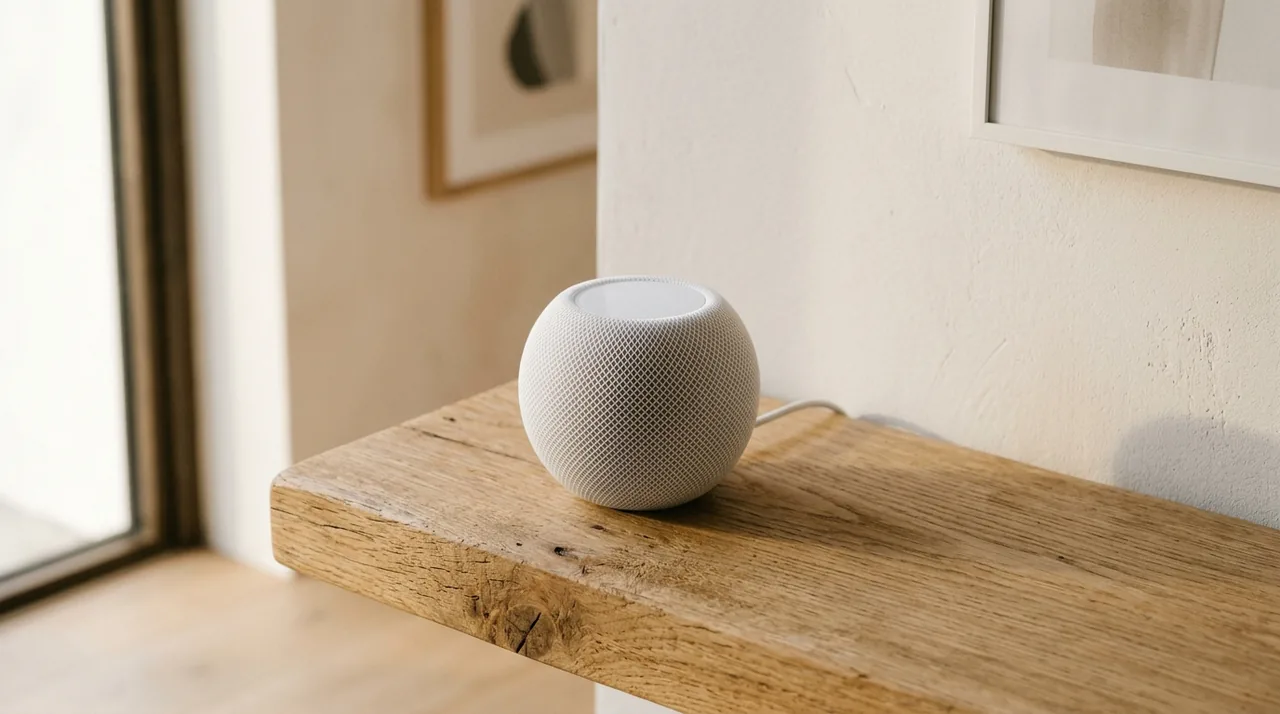
Shared speakers shine when everyone uses Intercom instead of yelling upstairs. Saying "Hey Siri, Intercom Dinner is ready" broadcasts across every HomePod in your home (and family AirPods if enabled), while "Announce kitchen" targets a single room. Explore HomePod Intercom, timers, and multi-room audio controls for more kitchen and living room phrases.
Personal Requests like checking texts or adding reminders on HomePod stay blocked for privacy until each household member turns on Recognize My Voice inside the Home app.
- 1Open the Home app on iPhone and tap More (...) > Home Settings.
- 2Pick your profile under People and turn on Recognize My Voice.
- 3Tap Personal Requests and toggle on whichever HomePod speakers should read your iPhone data.
“Hey Siri, Intercom Dinner is ready”
Broadcasts simultaneously to every HomePod in the home plus opted-in family iPhones, Apple Watches, and AirPods.
“Hey Siri, Announce upstairs Time to leave”
Targets only the HomePod assigned to that room or zone in Apple Home. Recipients can reply back with “Reply [message].”
Commands from this section
3 commandsBroadcast Voice Intercom Messages to HomePods & Family Devices
“Hey Siri, Intercom "Dinner is ready"”
Your spoken message plays across targeted HomePods and Apple devices, and family members can reply right back via Intercom.
Play or Move Multi-Room Audio Across HomePods
“Hey Siri, play jazz everywhere”
Every HomePod in your home begins playing synchronized audio—or playback seamlessly shifts to the named room.
Play Built-In HomePod Ambient Sleep Sounds
“Hey Siri, play rain sounds”
HomePod begins looping the requested soundscape smoothly without needing an Apple Music playlist.
Control HomeKit rooms, multi-device scenes, and Apple TV cameras
Organizing smart bulbs and plugs into clean Rooms and Zones inside Apple Home makes voice phrasing natural. Instead of remembering individual fixture names, say "Dim the living room lights to 30 percent" or run a single "Good night" scene to drop thermostats and kill downstairs lamps together.
Living room setups also link cleanly when controlling Apple TV playback and smart scenes by voice, letting you check a HomeKit Secure Video doorbell camera right on your television without grabbing your phone.
Commands from this section
4 commandsTrigger Multi-Device HomeKit Wake & Sleep Scenes
“Hey Siri, good night”
Every HomeKit or Matter device assigned to that scene updates simultaneously and Siri confirms completion.
Control Room Lights, Dimming & Color
“Hey Siri, dim the living room lights to 30 percent”
Siri adjusts only the smart lights assigned to that room in Apple Home.
Adjust HomeKit Smart Thermostat Temperature
“Hey Siri, set the thermostat to 70 degrees”
Your HomeKit or Matter thermostat updates its setpoint and confirms the new target temperature.
Pull Up Live HomeKit Camera Feeds on Apple TV or iPhone
“Show me the front door camera”
Your front door or backyard camera stream opens instantly over whatever you are watching.
Why HomePod refuses to open front door locks
Shout through an open porch window asking HomePod to open your front door, and Siri stops cold. Apple enforces strict authentication gates on smart locks and garage openers so nobody outside can bypass deadbolts by voice alone.
Locking doors ("Hey Siri, lock the front door") and checking status ("Did I close the garage door?") run hands free from anywhere. Opening a smart lock always demands Face ID, Touch ID, or a passcode check on your iPhone or authenticated Apple Watch.
Commands from this section
2 commandsLock or Check Status of HomeKit Smart Locks
“Hey Siri, lock the front door”
Siri locks the deadbolt immediately and confirms it is secured.
Check Garage Door & Contact Sensor Status
“Hey Siri, did I close the garage door?”
Siri checks the live sensor state and tells you whether the garage door or lock is open or closed.
Apple Support & Reference Sources
Frequently Asked Questions
Quick answers tested across current Apple devices and iOS releases.
Why does CarPlay skip reading WhatsApp messages aloud?
Open Settings > Notifications > Announce Notifications > CarPlay and verify WhatsApp is switched on inside the app list.
Can HomePod play Spotify directly by voice?
Spotify still lacks native Siri voice playback on HomePod speakers. Start audio inside Spotify on your iPhone, iPad, or Mac and stream over AirPlay instead.
How do I stop Intercom alerts while away from home?
Open the Home app > Home Settings > Intercom and select When I’m Home under Receive Notifications.
Explore Related Categories & Devices
Related Siri Guides
TroubleshootingiOS 27 & iOS 17+7 min
Siri Not Working or Responding? Real Fixes for iPhone & CarPlay
Step-by-step fixes when Siri stops responding, ignores "Hey Siri," gets hijacked by Bluetooth mics, pauses in Low Power Mode, or throws "CarPlay Not Available: Enable Siri."
Cross-Device WorkflowsiOS 27, macOS & watchOS6 min
Siri Commands for Spotify, Mac & Apple Watch (Cross-Device Tips)
Use Siri cleanly with Spotify on iPhone and CarPlay, speed up Mac file lookups and system toggles, and trigger on-device Apple Watch workouts and Health logs.
Shortcuts & AutomationiOS 27 & Shortcuts App6 min
Custom Siri Commands & iPhone Shortcuts (Including Water Eject)
Turn any custom phrase into a working Siri command with Apple Shortcuts, run the 165 Hz Water Eject shortcut safely, and explore Vocal Shortcuts for single-word triggers.