Skip to content
SiriCommands
CarPlay34 commands

Apple CarPlay Siri Commands

CarPlay runs directly through your paired iPhone and relies on Siri so your eyes stay on the road. You can request turn-by-turn Apple Maps directions, find gas stations or EV chargers along your route, share your ETA with family, listen to unread messages, send WhatsApp replies, or broadcast a HomePod Intercom arrival message from your car.

OS Support: Powered by your connected iPhone (iOS 17+ / iOS 26.4+ / iOS 27); Siri must be enabled in iPhone Settings for CarPlay to connect.

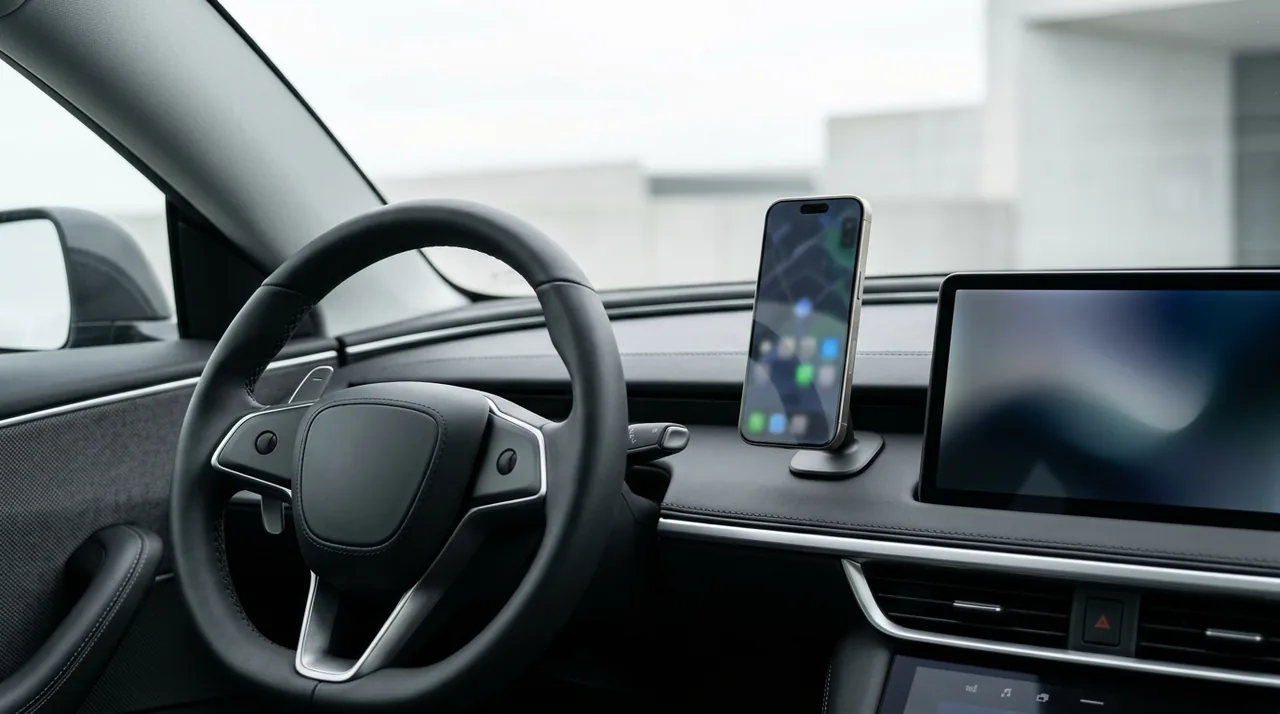
iPhone mounted beside steering wheel in modern car interior

How to Activate Siri

  • Press and hold the voice-command button on your steering wheel
  • Say "Siri" or "Hey Siri" in the cabin
  • Touch and hold the Home / Dashboard icon on the CarPlay screen

What Works Best

  • Turn-by-turn directions, toll avoidance, traffic checks, and Share ETA
  • Find gas stations, coffee shops, or EV chargers along your active route
  • Read incoming texts aloud, dictate replies, send WhatsApp messages, and place calls
  • Control Spotify, Apple Music, Podcasts, and trigger HomePod Intercom or HomeKit garage doors

Device Limitations

  • CarPlay disables visual reading of long messages, web articles, and video responses while driving.
  • If Siri is disabled in iPhone Settings, CarPlay refuses to start ("CarPlay Not Available: Enable Siri").
  • Third-party navigation apps like Waze or Google Maps require specifying the app name or opening them on the CarPlay dashboard.
CarPlay Index

All Apple CarPlay Commands

Filter Apple CarPlay commands by category, OS requirement, or search phrase.

34 commands

Identify Any Song Playing Around You with Shazam

“Hey Siri, what song is playing?”

Siri listens to the background audio for a few seconds, displays the track title and artist, and saves the match to your Shazam history.

Note: Requires an active internet connection for acoustic fingerprinting.

iPhone, iPad, Mac +4 moreVisual guide

Listen to Unread Text Messages Hands-Free

“Hey Siri, read my unread messages”

Siri speaks the sender’s name and message text aloud and pauses to let you dictate an immediate reply.

Note: Requires unlocking iPhone if Allow Siri When Locked is off or if notification previews are hidden while locked.

iPhone, iPad, Mac +4 moreVisual guide

Broadcast Voice Intercom Messages to HomePods & Family Devices

“Hey Siri, Intercom "Dinner is ready"”

Your spoken message plays across targeted HomePods and Apple devices, and family members can reply right back via Intercom.

Note: Intercom must be enabled inside the Apple Home app under Home Settings > Intercom.

HomePod, iPhone, iPad +3 more

Find Your Parked Car Automatically in Apple Maps

“Hey Siri, where did I park my car?”

Siri displays the exact Parked Car pin on Apple Maps and offers walking directions right back to your parking spot.

Note: Requires Show Parked Location turned on in Settings > Apps > Maps and pairing your iPhone with CarPlay or car Bluetooth.

iPhone, Apple Watch, CarPlay +1 more

Send Messages or Call on WhatsApp

“Hey Siri, send a WhatsApp message to Alex”

Siri confirms the recipient on WhatsApp, previews your dictated message, and sends it upon confirmation.

Note: Requires WhatsApp installed and enabled under iPhone Settings > Apps > WhatsApp > Siri.

iPhone, iPad, Apple Watch +2 more

Set Location-Based Geofence Reminders

“Hey Siri, remind me to check the mail when I get home”

Siri creates a location-tagged reminder tied to your Home, Work, car Bluetooth, or named store address.

Note: Requires Location Services turned on for Reminders under Settings > Privacy & Security > Location Services.

iPhone, iPad, Mac +3 more

Trigger Multi-Device HomeKit Wake & Sleep Scenes

“Hey Siri, good night”

Every HomeKit or Matter device assigned to that scene updates simultaneously and Siri confirms completion.

Note: Scenes must first be created or customized inside the Apple Home app.

HomePod, iPhone, iPad +5 more

Share Your Live Arrival Time While Navigating

“Hey Siri, share my ETA with Alex”

Apple Maps sends your real-time ETA notification to Alex and updates them automatically if traffic delays you.

Note: Requires active Apple Maps turn-by-turn navigation and Share ETA enabled in Settings > Apps > Maps.

CarPlay, iPhone, AirPods

Ask Back-to-Back Follow-Up Questions

“Hey Siri, what’s the weather in Seattle? ... And how about this weekend?”

Siri stays listening briefly after answering and updates the weather forecast, timer, or draft message using your follow-up context.

Note: Follow-up listening is supported on iOS 17+ / HomePod Software 17+ in supported languages (initially English).

iPhone, iPad, Mac +3 more

Add Gas, EV Chargers, or Coffee Along Your Active Route

“Hey Siri, find the nearest EV charger along my route”

CarPlay or Maps displays matching stops sorted by minimal detour time so you can tap or speak to add a pit stop.

Note: Saying "along my route" prevents Maps from routing you backward behind your current position.

CarPlay, iPhone, Apple Watch +1 more
FAQ

Apple CarPlay Siri Questions

Why does CarPlay say "Enable Siri" and refuse to connect?

Apple requires Siri to be enabled for CarPlay voice safety. Open iPhone Settings > Apple Intelligence & Siri (or Siri & Search) and turn on Allow Siri When Locked and Press Side Button for Siri, then reconnect your car.

Can I share my arrival time using Siri in CarPlay?

Yes. While navigating in Apple Maps, say "Hey Siri, share my ETA with [Contact Name]" to send live arrival updates automatically.

Guides

Recommended Guides for Apple CarPlay

Explore Other Apple Devices