Skip to content
SiriCommands
10 Commands

Music, Podcasts & Media Siri Commands

Whether you use Apple Music, Spotify, Podcasts, or Apple TV 4K, Siri keeps playback moving without touching a screen. You can identify songs playing nearby via built-in Shazam, direct audio to specific HomePod rooms, or press the Siri Remote to ask "What did they say?" and temporarily enable captions.

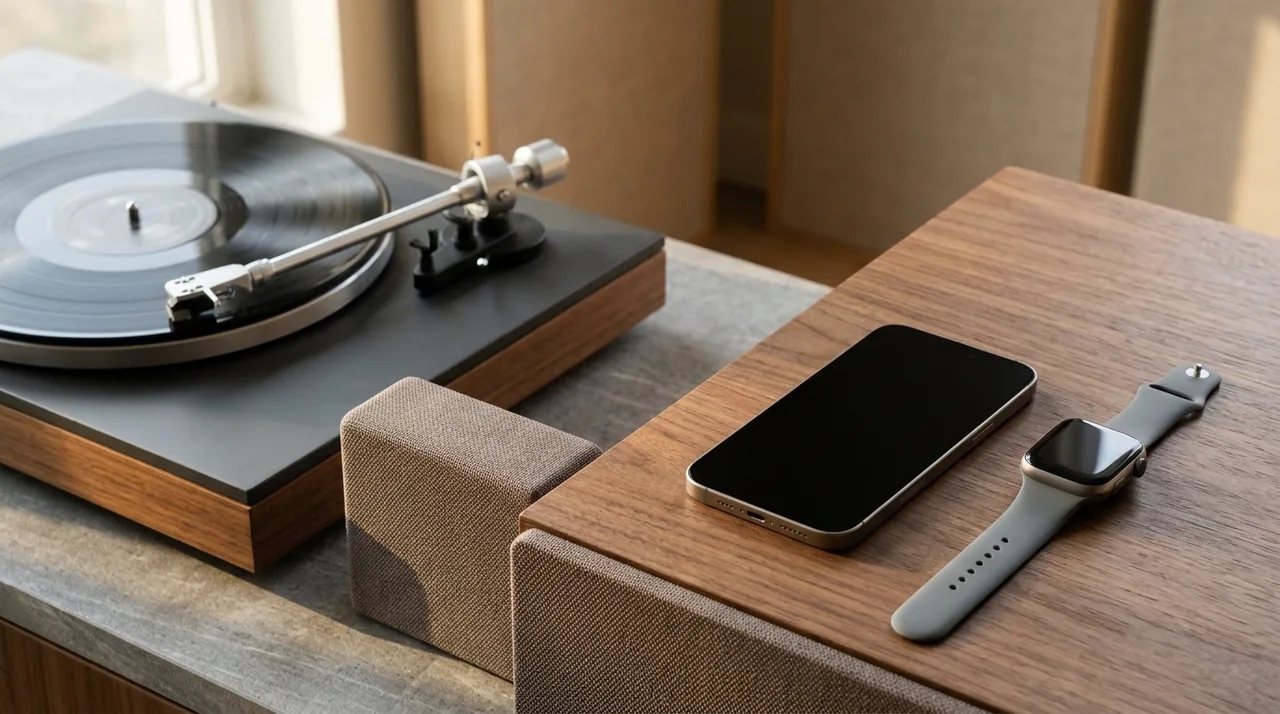
Turntable, iPhone, and Apple Watch on walnut speaker cabinet
10 commands

Identify Any Song Playing Around You with Shazam

“Hey Siri, what song is playing?”

Siri listens to the background audio for a few seconds, displays the track title and artist, and saves the match to your Shazam history.

Note: Requires an active internet connection for acoustic fingerprinting.

iPhone, iPad, Mac +4 moreVisual guide

Play Tracks, Playlists & Podcasts on Spotify via Siri

“Hey Siri, play my Discover Weekly on Spotify”

Siri launches Spotify playback for the requested playlist, artist, or podcast without opening the Spotify app manually.

Note: Make sure Spotify is enabled under Settings > Apps > Spotify > Siri on iOS.

iPhone, iPad, Mac +3 moreVisual guide

Replay Missed Apple TV Dialogue with Temporary Subtitles

“What did they say?”

Apple TV jumps back a few seconds, displays Closed Captions for the missed line, and hides captions automatically afterward.

Note: Requires pressing the Siri button on the Apple TV Siri Remote (or asking a paired HomePod with "on the TV").

Apple TV

Play Music by Mood, Genre, or Personal Mix

“Hey Siri, play chill lo-fi music”

Siri starts a fitting station or playlist across your device or HomePod speakers.

Note: Full on-demand Apple Music catalog playback requires an Apple Music subscription.

iPhone, iPad, Mac +5 more

Play or Move Multi-Room Audio Across HomePods

“Hey Siri, play jazz everywhere”

Every HomePod in your home begins playing synchronized audio—or playback seamlessly shifts to the named room.

Note: Requires multiple HomePods or AirPlay 2 speakers assigned to rooms in the Apple Home app.

HomePod, iPhone

Skip Ads or Rewind Video & Podcasts by Exact Seconds

“Hey Siri, skip forward 30 seconds”

Playback jumps forward or back by the exact duration you specified.

Note: Some live broadcast TV streams do not allow fast-forwarding past live edges.

Apple TV, iPhone, iPad +3 more

Control Apple TV Playback Hands-Free via HomePod or iPhone

“Hey Siri, play Ted Lasso on the living room TV”

Your living room Apple TV wakes up, switches to the requested show or pauses playback immediately.

Note: Apple TV and HomePod must be added to the same Home in the Apple Home app with matching room names.

HomePod, iPhone, iPad +1 more

Play or Resume Any Podcast Episode

“Hey Siri, play the latest episode of The Daily”

Siri starts streaming the requested podcast episode and syncs progress across iCloud devices.

Note: Append "on Spotify" if you follow that podcast on Spotify instead of Apple Podcasts.

iPhone, iPad, Mac +4 more

Set Exact Audio Volume Percentages

“Hey Siri, set the volume to 40 percent”

Siri adjusts the media volume slider on the current device or HomePod to 40%.

Note: On HomePod, you can also target another room by saying "Set the kitchen HomePod volume to 30 percent."

iPhone, iPad, Mac +3 more

Toggle Subtitles or Audio Language on Apple TV

“Turn on Closed Captioning”

Apple TV immediately enables or hides closed captioning on the current video.

Note: Caption styling follows Settings > Accessibility > Subtitles and Captioning on Apple TV.

Apple TV
Music App Routing Comparison

“Hey Siri, play jazz”

Defaults to Apple Music (or your last remembered player after repeated prompts).

“Hey Siri, play jazz on Spotify”

Routes directly through Spotify SiriKit across iPhone, CarPlay, Watch, and AirPods.

Pro Tips

Tips for Music, Podcasts & Media

  • Append "on Spotify" when requesting tracks or playlists if Spotify is installed on your iPhone, iPad, Watch, or CarPlay.
  • On Apple TV, "What did they say?" jumps back roughly 10 to 15 seconds and turns on captions temporarily before hiding them again.
  • Control an Apple TV across the room from HomePod by ending your command with the room name, such as "on the living room TV."
FAQ

Media Siri Questions

Does Siri work with Spotify on iPhone and CarPlay?

Yes. Say "Hey Siri, play Discover Weekly on Spotify" on iPhone, iPad, Mac, Apple Watch, AirPods, or CarPlay. Make sure Spotify is allowed under Siri settings on iOS.

Do I need the Shazam app installed for Siri to identify a song?

No. Shazam music recognition is built directly into Siri across iPhone, iPad, Mac, Apple Watch, and HomePod. Simply ask "Hey Siri, what song is playing?"

Can HomePod play Spotify natively with Siri voice commands?

HomePod natively supports Apple Music and supported third-party services that adopt HomePod media integration. Check Spotify support status or stream from iPhone via AirPlay.

Related Guides

Setup & Walkthrough Guides

Browse Other Categories