Custom Siri Commands & iPhone Shortcuts (Including Water Eject)
Turn any custom phrase into a working Siri command with Apple Shortcuts, run the 165 Hz Water Eject shortcut safely, and explore Vocal Shortcuts for single-word triggers.
Key Takeaways
- Every Shortcut title in Apple’s Shortcuts app automatically becomes a live Siri voice command.
- The viral iPhone Water Eject command is a community Shortcut playing a ~165 Hz tone, unlike Apple Watch’s built-in Water Lock.
- Avoid naming Shortcuts after built-in phrases like "Set Alarm" so Siri does not trip over native commands.
- Accessibility Vocal Shortcuts trigger actions from a custom spoken word without saying "Hey Siri" first.
How any Shortcut title becomes a custom voice trigger
People often hunt inside iPhone Settings expecting a "Custom Voice Commands" page and find nothing. Apple hides custom command building inside the Shortcuts app, where every workflow name becomes a spoken Siri command automatically.
Try device automation and morning routine commands on iPhone or building your own workflow named "Desk Mode." Speak "Hey Siri, Desk Mode" and iOS runs every action inside that sequence back to back, whereas simpler system setting commands that work without Shortcuts run natively with zero configuration.
- 1Open Apple’s Shortcuts app and tap + to start a blank workflow.
- 2Add one or more actions such as Set Focus, Set Brightness, Open App, or Home scenes.
- 3Tap the top title bar, pick Rename, and type a crisp two-word spoken name.
- 4Say "Hey Siri, [Shortcut Name]" immediately to verify voice matching.
How Custom Shortcut Names Become Live Siri Triggers
Open Shortcuts
Tap + to create a blank workflow
Add Actions
Focus, Volume, Brightness, or Audio
Rename Title
Pick 1–2 clear spoken words
Speak to Siri
"Hey Siri, [Shortcut Name]"
Commands from this section
2 commandsTrigger Multi-Step Custom Apple Shortcuts by Name
Shortcuts“Hey Siri, Morning Routine”
Siri matches the spoken phrase to your saved Shortcut and executes every chained action automatically.
Describe Custom Workflows in Plain Language
iOS 27“Siri, build a shortcut that saves PDFs from Mail to my Receipts folder”
Apple Intelligence drafts or runs a multi-step workflow connecting supported apps without manual block dragging.
Water Eject on iPhone vs. native Apple Watch Water Lock
Apple Watch carries built-in Water Lock in Control Center, locking touch input during swims and spinning a pulsing speaker chirp when you turn the Digital Crown afterward. Because iPhones carry IP68 seals, Apple never added a native Water Eject mode to iOS.
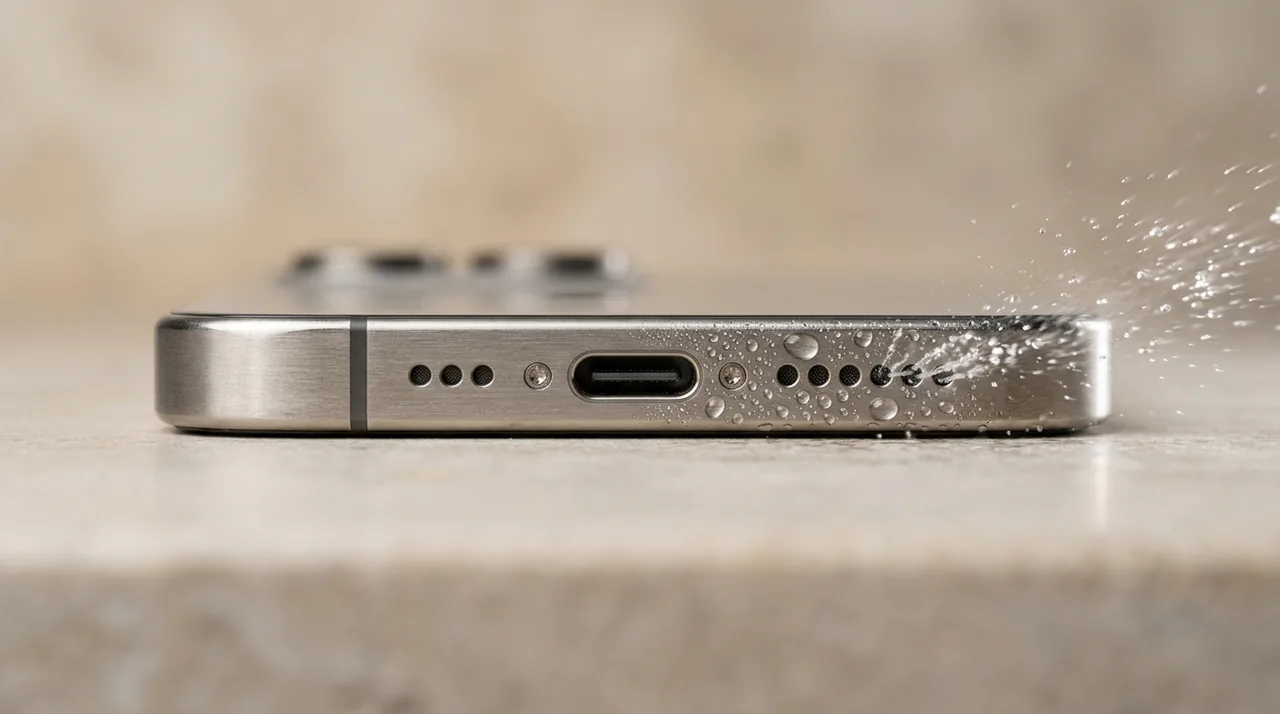
Instead, the popular trick relies on running the Water Eject shortcut after liquid exposure. That community-built Shortcut turns your media volume up and loops a low-frequency audio wave near 165 Hz so speaker membrane vibration pushes stray water droplets out of the grille.
Charging safety after liquid exposure
Unlike Apple Watch Water Lock, the iPhone Water Eject shortcut never locks your touchscreen and only vibrates speaker cavities. Wait until your USB-C or Lightning port dries completely and any iOS liquid-detection warning clears before plugging in a cable.
Commands from this section
1 command“Hey Siri, Water Eject”
Siri triggers your installed Water Eject Shortcut, plays a pulsed low-frequency tone through the speakers, and clears residual moisture.
Practical custom Shortcuts you will keep using next month
Skip novelty workflows you try once and delete. The most reliable custom phrases group two or three settings you already tap every morning or commute, or handle fun triggers like mapping spell names to custom Apple Shortcuts.
Start with a "Leave Work" shortcut that turns on Low Power Mode under 30% battery and starts Maps directions home, plus a "Quick Break" shortcut combining Do Not Disturb with a 15-minute countdown timer. Adding a location-aware Grocery list reminder keeps shared items synced without opening Reminders.
Commands from this section
3 commandsTurn On Do Not Disturb or Any Focus Mode
“Hey Siri, turn on Do Not Disturb for one hour”
Siri activates Do Not Disturb across synced Apple devices and automatically turns it off after the requested duration.
Enable Low Power Mode to Stretch Battery
“Hey Siri, turn on Low Power Mode”
Siri turns on Low Power Mode (turning the battery icon yellow) to reduce background activity.
Set Location-Based Geofence Reminders
“Hey Siri, remind me to check the mail when I get home”
Siri creates a location-tagged reminder tied to your Home, Work, car Bluetooth, or named store address.
Skip saying "Hey Siri" with Accessibility Vocal Shortcuts
Under Settings > Accessibility > Vocal Shortcuts, iOS lets you bind any spoken word or sound (for instance "Dim" or "Snap") straight to a Shortcut or system action without prefixing "Siri" beforehand.
Pick an action, speak your chosen cue three times to train the local acoustic recognizer, and test it. Keep in mind that Vocal Shortcuts monitor the microphone continuously when active, which draws slightly extra battery compared with standard Siri listening.
Apple Support & Reference Sources
Frequently Asked Questions
Quick answers tested across current Apple devices and iOS releases.
Why does Siri open web results instead of launching my custom Shortcut?
Your Shortcut title probably clashes with a built-in Siri phrase or contact name. Rename it to a distinct two-word label, give Spotlight a minute to re-index, and test again.
Do custom Siri Shortcuts work on Apple Watch and HomePod?
Custom Shortcuts run on both once iCloud sync for Shortcuts is on, provided every step inside the workflow supports that device.
Can a 165 Hz Water Eject shortcut harm iPhone speakers?
Playing a brief 10-to-15-second low-frequency tone inside normal system volume bounds stays safe, though you should always inspect downloaded community Shortcuts before running them.
Explore Related Categories & Devices
Related Siri Guides
Easter Eggs & ShortcutsiOS 27 & iOS 17+5 min
Harry Potter Siri Commands: Native Spells vs. Shortcut Setups
Which Harry Potter spells work on Siri out of the box (Lumos and Nox) and how to build working Shortcuts for Silencio, Lumos Maxima, and Accio in two minutes.
Apple IntelligenceiOS 27 & iOS 26.47 min
iOS 27 & Apple Intelligence Siri Commands: What Actually Works
Tested Siri AI prompts for iOS 26.4 and iOS 27 covering personal context across Mail and Messages, on-screen awareness, Type to Siri, Visual Intelligence, and ChatGPT handoffs.
Cross-Device WorkflowsiOS 27, macOS & watchOS6 min
Siri Commands for Spotify, Mac & Apple Watch (Cross-Device Tips)
Use Siri cleanly with Spotify on iPhone and CarPlay, speed up Mac file lookups and system toggles, and trigger on-device Apple Watch workouts and Health logs.